Find it. Preview it. Send it.
Search a Bible reference, choose a translation and send the passage. Move through verses live, with separate styling for your Scripture.
Scripture quick start ↗MADE FOR THE MOMENTS THAT MATTER
Bring Scripture, songs, graphics and live video together. Give your media team a clear place to prepare, preview and present.
WorshipCue is in active development. Test your setup before a live service.
“The LORD is my shepherd;
I shall not want.”
Illustrative output layouts · not an app screenshot
INSIDE WORSHIPCUE
A familiar view for your team: preview on one side, live outputs alongside it, and the next cue within reach.
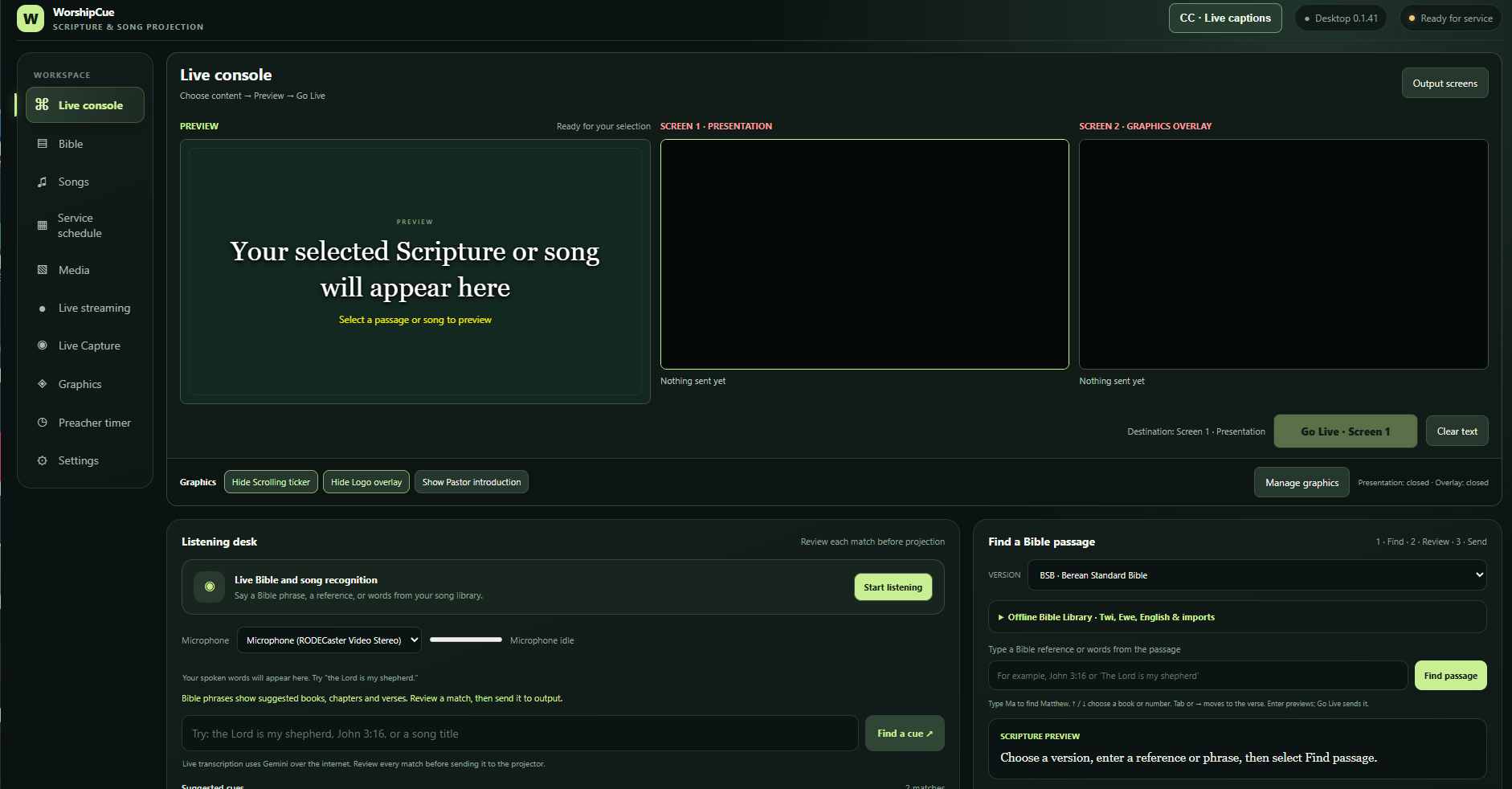
DIFFERENT MOMENTS. YOUR STYLE.
Select a moment to see an example of lyrics, a speaker name, Scripture or an announcement with a persistent logo and ticker.
Interactive design examples, not a live connection to the app. Names and event details are samples.
Worship lyrics example selected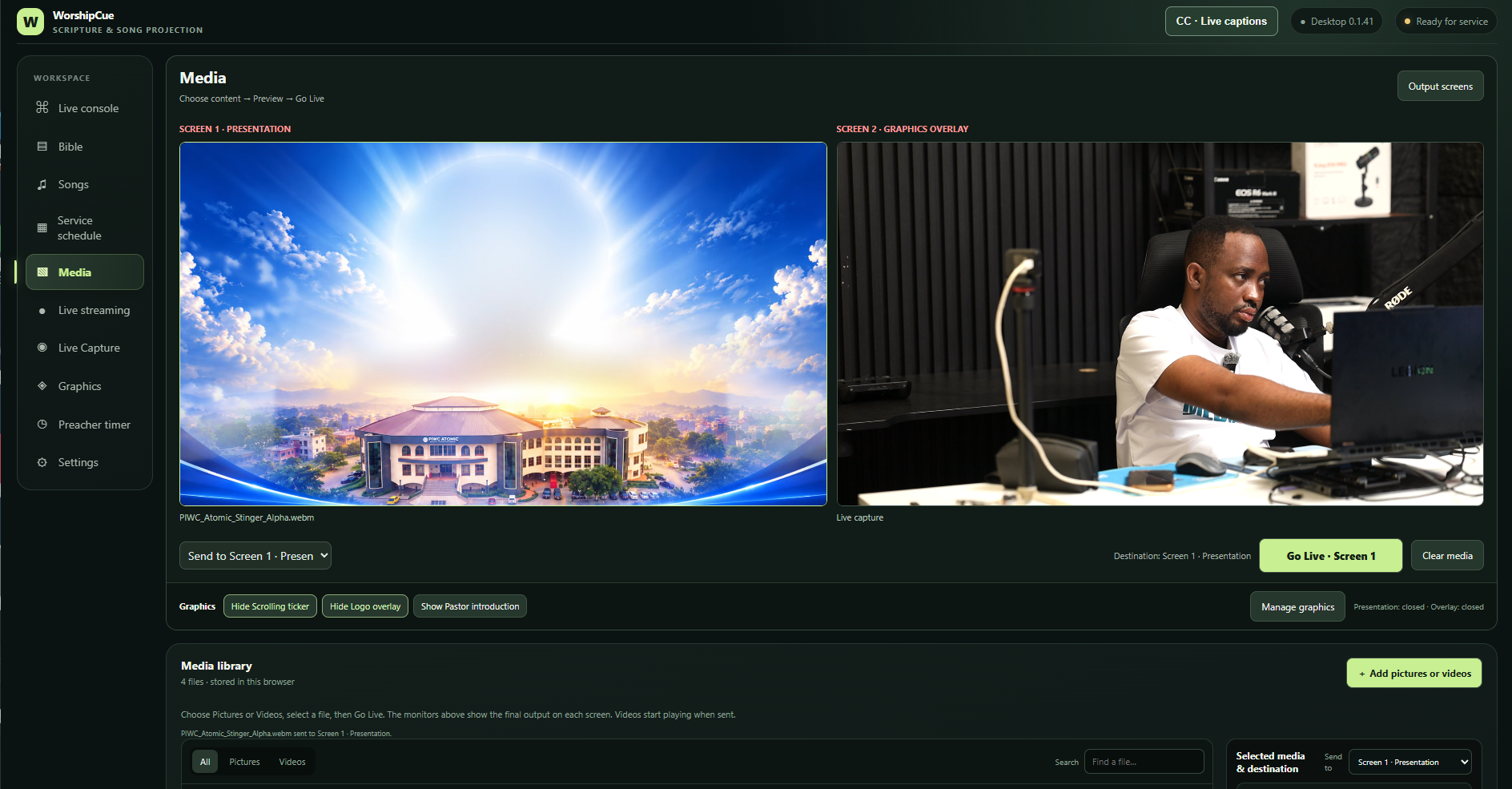
LESS SEARCHING. MORE SERVING.
Keep the tools for each part of your service together, with a preview before anything reaches the congregation.
Search a Bible reference, choose a translation and send the passage. Move through verses live, with separate styling for your Scripture.
Scripture quick start ↗Search your song library, edit lyrics and split them into slides. Choose two lines, three lines or a full layout for your screen.
Song quick start ↗Prepare logos, scrolling text, speaker names and image banners in graphics groups. Preview the group before sending it live.
Explore your outputs ↗A PLACE FOR EVERY OUTPUT
Give the congregation the content, your production the graphics, and the preacher a clear view of the time.
Choose available displays in the app. Your computer’s display connections and operating system determine how many screens you can use.
Scripture, songs, pictures and videos. Choose full screen or lower third where supported.
Keep logos and scrolling text visible while bringing individual graphics on and off.
A dedicated countdown with a yellow warning and a red time-up indicator.
A SIMPLE RHYTHM
Bring together the passages, songs and media you plan to use.
Choose backgrounds, text styles and layouts. Review the preview.
Select the destination and go live. Advance live content as the service continues.
CHOOSE YOUR WORKSPACE
Explore the console, prepare content and try your presentation workflow without installing the desktop app.
Use a desktop browser for the operator workspace. Export backups before changing browsers or computers.
The Windows build adds native display controls, Gemini transcription and direct RTMP/RTMPS streaming.
Public installer download hosting is being prepared. This opens an email request; it does not download an installer. A Mac download is not available here yet.
Manage your account and computers ↗ · Account services are being connected. Paid subscriptions are not enabled.
YOUR FIRST SERVICE
Open Help & License inside the app for the full operator guide.
Contact Encoremedia ↗Open the web app and choose Bible library. Select a translation, type a reference such as Matthew 5:3, and preview it. Choose your destination and send the Scripture. Once live, Next and Previous advance the live passage.
Open Song library, search for or import a song, then select a slide. Adjust the song’s appearance, preview it and send it to your chosen output. Use the live navigation controls to move through the lyrics.
Connect your display and set your operating system to Extend. Open the output window from WorshipCue, select the screen if available, or move the window onto the display and enter fullscreen. Allow pop-ups when your browser asks.
The Windows workflow can use the separate NDI Tools Screen Capture application to send an output display over your network. Native NDI broadcasting is not built into the browser. Direct RTMP/RTMPS streaming uses the Windows desktop encoder; the web version does not run that encoder.
The library includes downloadable options in English, French and selected African languages. Availability varies by translation. NIV and NKJV require appropriate permission; they are not automatically included with every installation. Review Bible licensing information inside the app.
Do not rely on them offline. Browser speech recognition depends on browser support and may require internet access. Windows Gemini transcription requires an internet connection and your own valid API key. Downloaded Bible text can be available offline.
The web app stores local library data in the current browser. A different browser or domain can have a separate library. Use the app’s import and export tools to make backups before switching devices or clearing browser data.
READY FOR THE NEXT MOMENT?